Service Catalog
This guide explores working with the service catalog. Epinio provides a catalog of templates that are used to create service instances. For more information see the service catalog reference page.
View Service Catalog
- UI
- CLI
To view the service catalog, navigate to the Catalog page under the Services section of the side navigation menu.
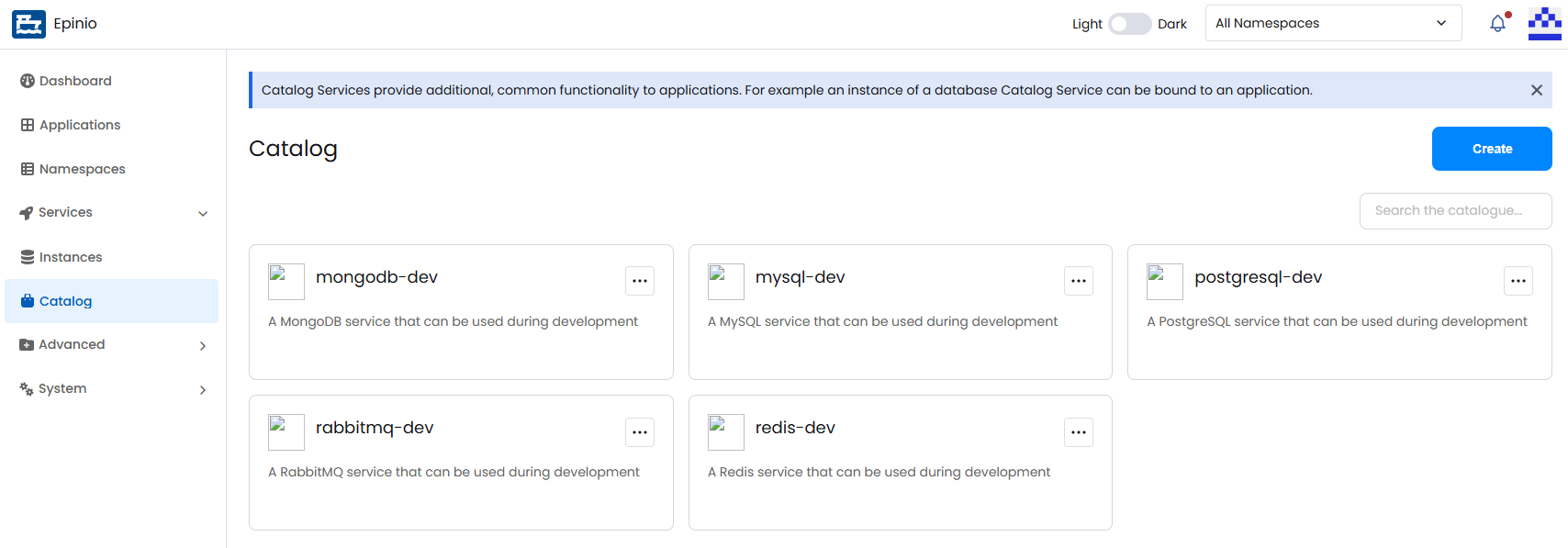
List all available catalog services:
epinio service catalog
View Catalog Service Details
- UI
- CLI
Click on a service catalog card to open its details page. Here you can view all instances created from that service, create new instances, and edit or delete existing ones. See the services how-to for more information.
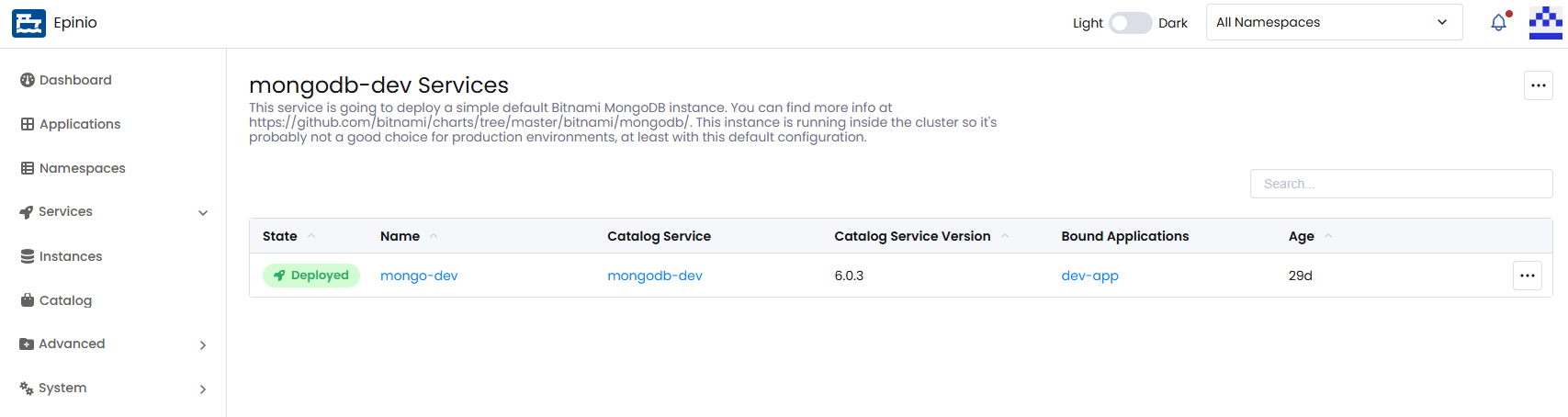
Show details for a specific catalog service:
epinio service catalog myservice
Create a Catalog Service
- UI
- CLI
Click Create on the Catalog page to open the creation modal. Here you can provide a name and descriptions used to identify the service.
You can also provide an image url that will be used as the icon when displaying the service in the catalog.
You will need to provide the name of the chart to install and can optionally provide the version of the chart and/or the version of the app packaged by the chart. Next, provide the information relating to the Helm repo where the chart lives.
You can also add configurable settings that can be provided when provisioning the service.
Under the Advanced Options you can tell Epinio what kinds of Kubernetes Secrets are compatible with the service.
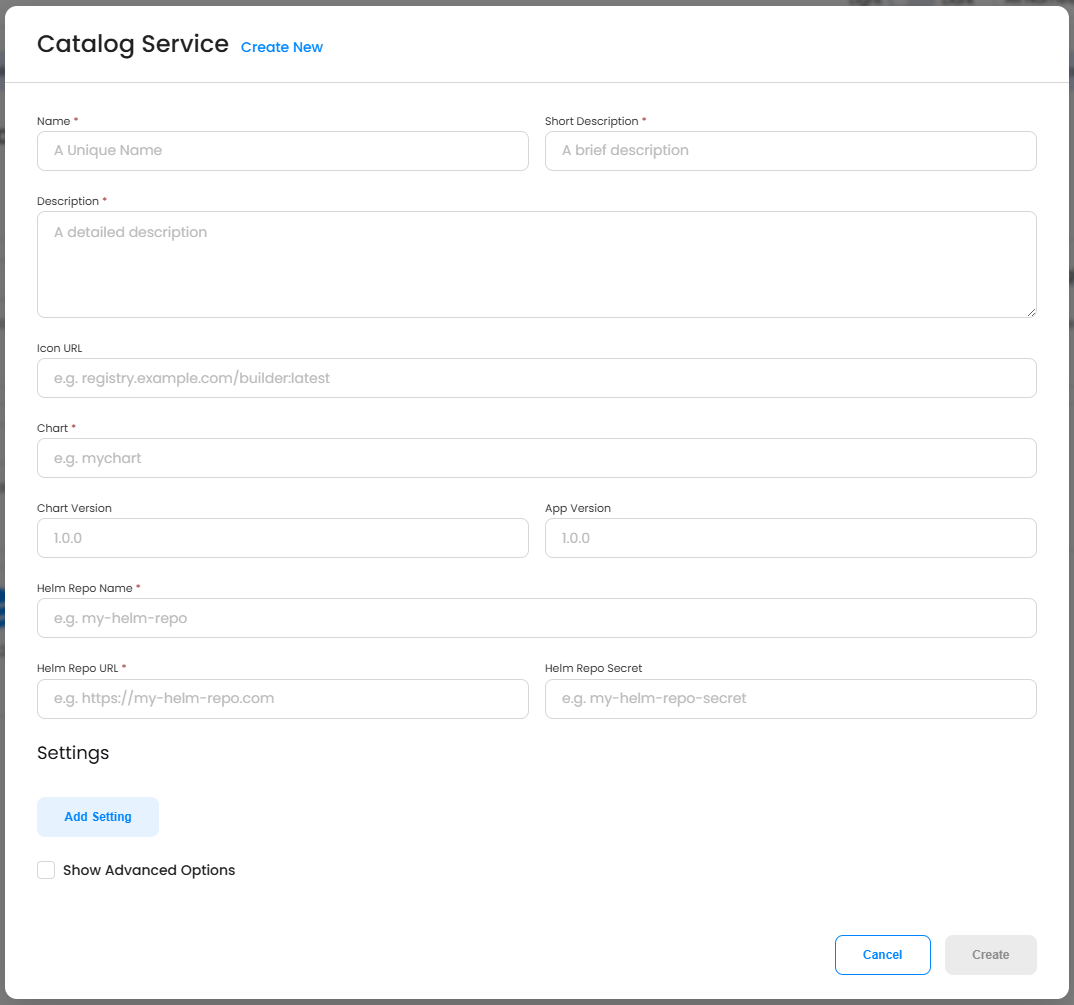
Create a catalog service. Both --name and --chart are required:
epinio service catalog create --name mysql \
    --chart mysql \
    --chart-version 9.4.1 \
    --app-version 8.0.30 \
    --helm-repo-name bitnami \
    --helm-repo-url https://charts.bitnami.com/bitnami \
    --short-description "MySQL database" \
    --description "A MySQL database provisioned from the Bitnami chart" \
    --service-icon https://example.com/mysql.png \
    --secret-types "mysql,database"
Use --values-file to pass a YAML file with the settings that can be configured when provisioning the service:
epinio service catalog create --name mysql --chart mysql \
    --helm-repo-url https://charts.bitnami.com/bitnami \
    --values-file ./mysql-values.yaml
If the Helm repository requires credentials, reference the secret holding them with --helm-repo-secret.
Edit a Catalog Service
- UI
- CLI
Select Edit from the action menu from the card of the catalog service you wish to edit. You can also open the edit modal from the details page. Use caution when editing catalog services when there are associated service instances.
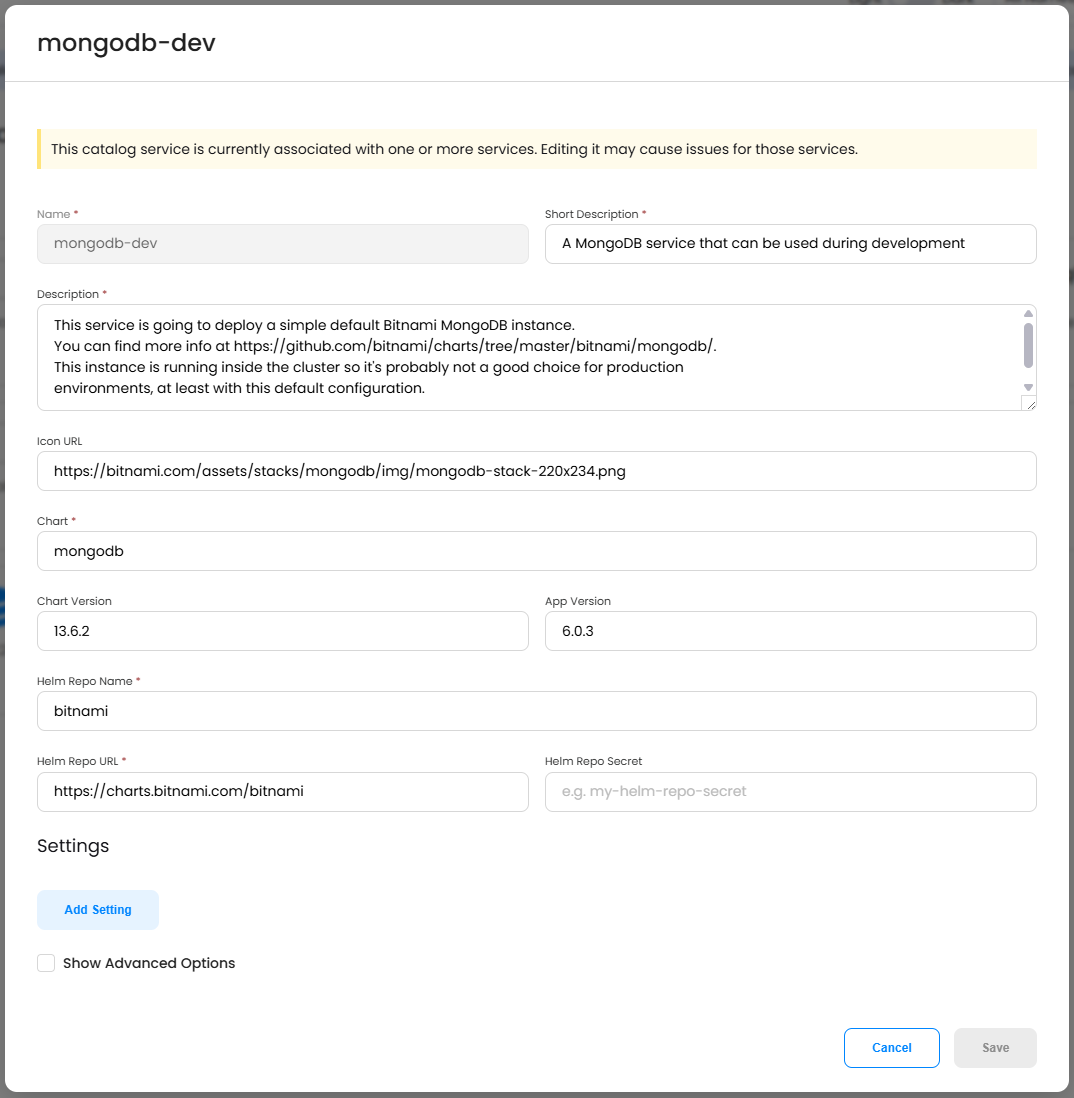
Update a catalog service. Flags you do not set leave the corresponding fields unchanged:
epinio service catalog update mysql \
    --chart-version 9.5.0 \
    --short-description "An updated description"
Delete a Catalog Service
- UI
- CLI
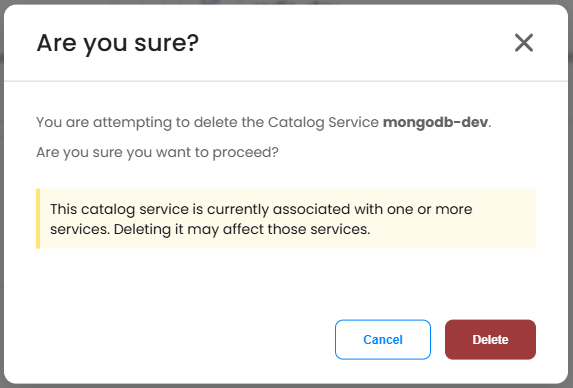
Open the action menu for the catalog service and select Delete. Confirm the deletion. This can also be done from the details page
Delete a catalog service:
epinio service catalog delete mysql
Additional CLI Commands
For additional documentation on the CLI commands above, along with additional commands, see the epinio service catalog CLI reference.