Builder Images
This guide explores working with builder images. Builder images transform source code into runnable container images. For more information see the builder images reference page.
View Builder Images
- UI
- CLI
To view all available builder images, navigate to the Builder Images page under the Advanced section of the side navigation menu.
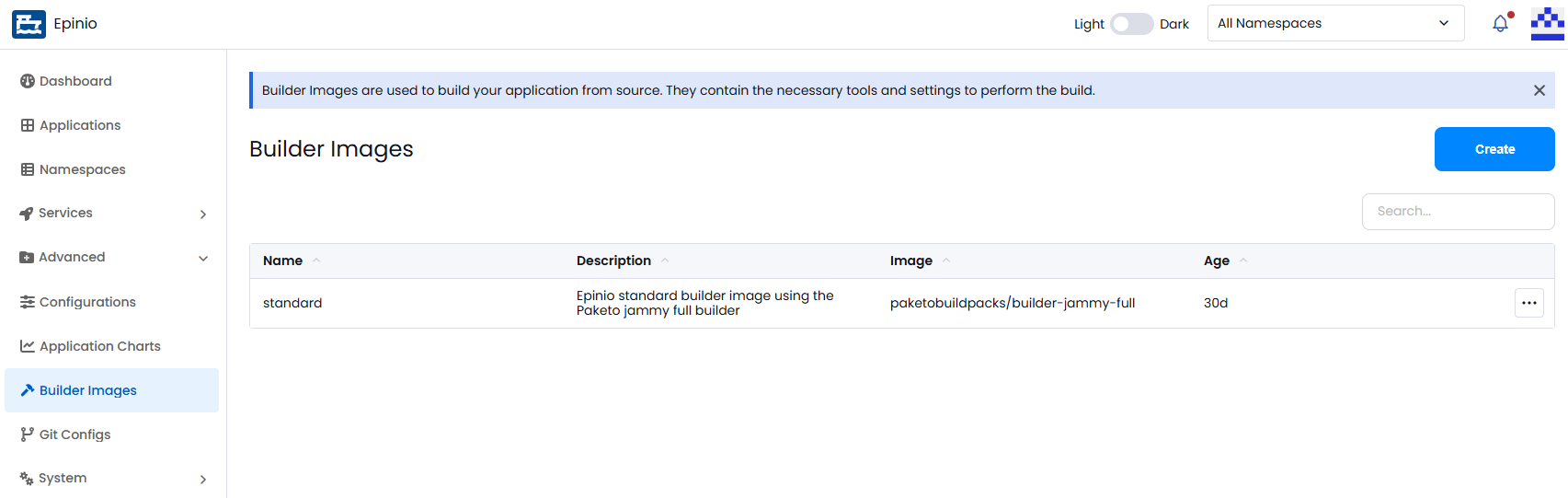
List all known builder images:
epinio buildimage list
Show the details of a single builder image:
epinio buildimage show myimage
Create a Builder Image
- UI
- CLI
Click Create on the Builder Images page to open the creation modal. Here you can provide a name, descriptions and the image itself.
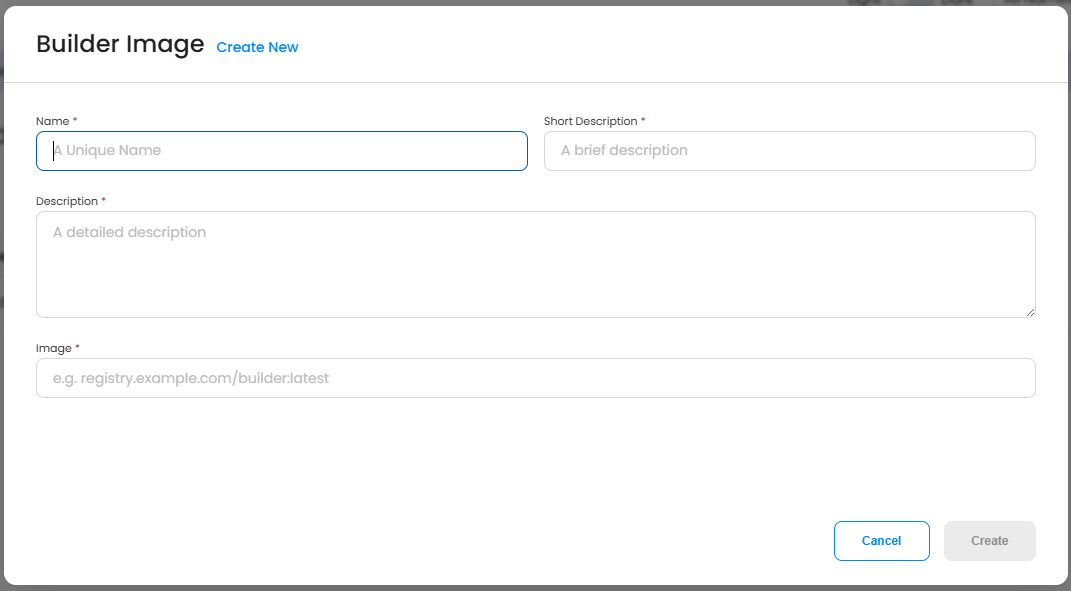
Create a builder image. Both --name and --image are required:
epinio buildimage create --name myimage \
    --image paketobuildpacks/builder-jammy-full:latest \
    --short-description "My builder image" \
    --description "A longer description of my builder image"
Edit a Builder Image
- UI
- CLI
Select Edit from the action menu for the row of the builder image you wish to edit. Use caution when editing images that are being used by applications, as you may cause issues for future rebuilds.
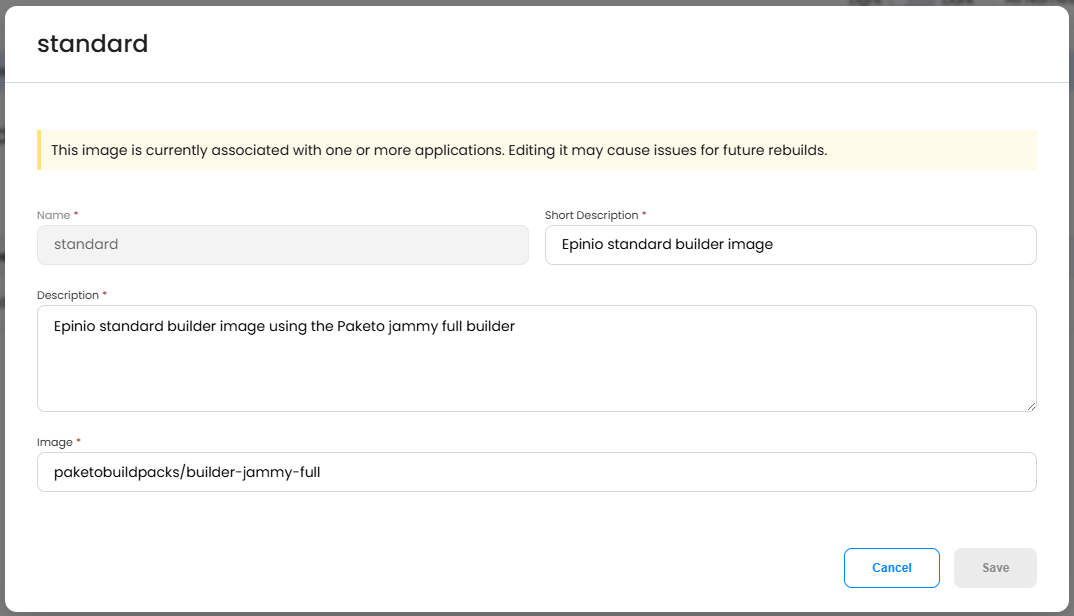
Update a builder image. Flags you do not set leave the corresponding fields unchanged:
epinio buildimage update myimage \
    --image paketobuildpacks/builder-jammy-full:0.4.0 \
    --short-description "An updated description"
Delete a Builder Image
- UI
- CLI
Open the action menu for the builder image and select Delete. Confirm the deletion.
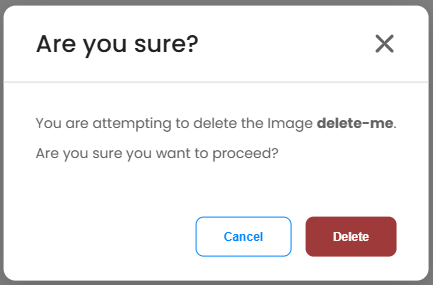
Delete a builder image:
epinio buildimage delete myimage
Additional CLI Commands
For additional documentation on the CLI commands above, along with additional commands, see the epinio buildimage CLI reference.